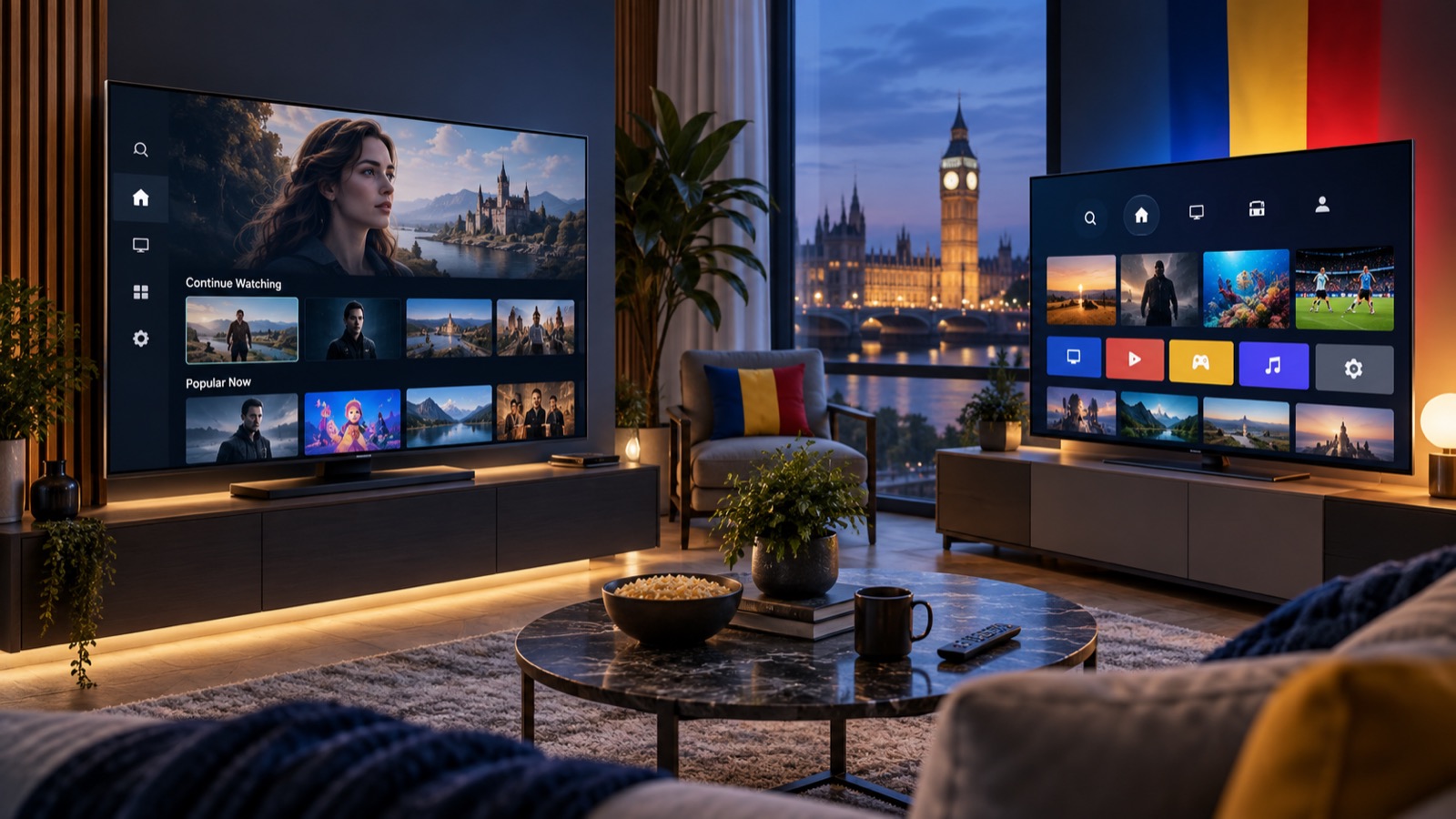
How to Set Up IPTV on Samsung and LG Smart TVs
Install IBO Player from your television’s app store and connect your subscription using the MAC Address and Device Key.
Samsung and LG smart televisions can run an IPTV player directly, so you may not need an extra streaming stick. The exact store name differs, but the setup process is very similar.
Before you begin
Connect the television to the internet and confirm its date and time are correct. Have your remote control ready and make sure you can open the television’s app store.
Samsung Tizen setup
Open Apps or Smart Hub from the Samsung home screen. Search for IBO Player, select it, and choose Install. When installation finishes, open the app.
LG WebOS setup
Press the Home button, open the LG Content Store, and search for IBO Player. Install and launch the app.
Connect your subscription
The player’s opening screen displays a MAC Address and Device Key. Take a clear photo or copy both values carefully. Send them to our support team and we will add your playlist. Restart the app after confirmation.
Keep the app running smoothly
- Use Ethernet where possible for the most consistent connection.
- Keep the television software and player app updated.
- Fully restart the TV after a router or broadband change.
- Avoid entering credentials into unofficial websites.
App activation
Player applications and IPTV subscriptions are separate products. If an app displays an activation notice, contact us before paying so we can advise you about the supported setup.
Our complete device installation guide also covers Firestick, Android, iPhone, iPad, Roku and MAG boxes. When you are ready, view subscription options.